Search This Blog

Monday, May 27, 2024

How to Use Google Meet for Voice & Video Calls 2024

 Google Meet is one of the most popular video conferencing services, with a user-friendly UI and a range of features. The video calling tool integrates with other Google products like Gmail and Google Calendar and simplifies the process of scheduling and joining meetings. 

Now that face-to-face communication has gotten harder due to more people working from home, video conferencing options have become more important than ever to today’s businesses.

How to start a new meeting on Google Meet

If you've ever scheduled a Google Hangout, you may wonder how it's different
from Google Meet. Google Hangouts is a free tool provided with Gmail that allows you to jump into a video call, whereas Meet is a more robust platform with more features that is provided under Google Workspace (formerly G Suite). Google Meet is preferable in a business setting.

Create a Google Meet in 7 easy steps

Here’s how to create a Google Meet session for your team.

1. Go to Google Meet

Visit meet.google.com, which will take you to the Google Meet homepage where you can schedule a meeting.

2. Click “New Meeting”

Click on the green button that says "New Meeting" in the lower right corner of the page. You may need to sign into your Google account first, or create one if you haven't done so already.

3. Choose "Schedule in Google Calendar"

After clicking on the button, you will be given three choices: get a meeting link to share, start an instant meeting, or schedule a meeting in Google Calendar. The first two options involve starting a meeting right away, so choose the last option to schedule a meeting for later.
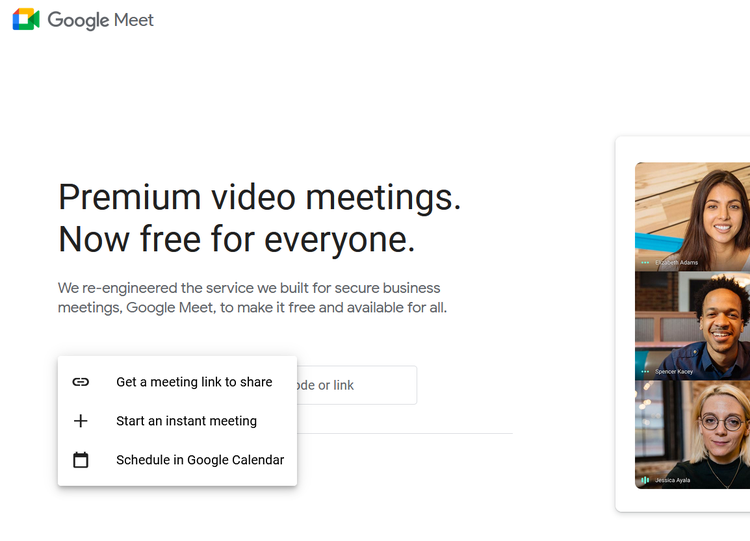
A screenshot from Google Meet.

Click on the “Schedule in Google Calendar” option to schedule a meeting. Image source: Author

4. Fill out the meeting details

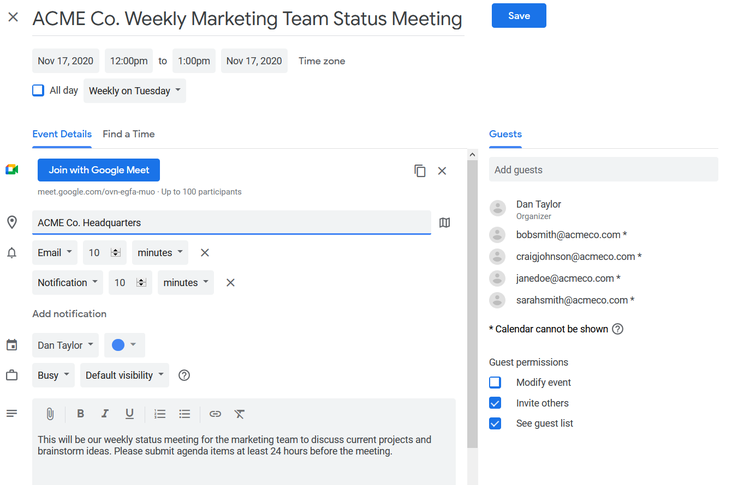
You will be provided with a form to fill out with all the meeting details. You'll notice it looks very similar to creating a Google Calendar entry, and it works basically the same way -- except, in this case, it also creates a Google Meet link that invitees can click when the scheduled time arrives.

Fill out the title of the meeting; check with attendees’ work schedules and then choose date, time, and duration; select whether this is a one-time or repeating event; add a description; add guests; and include any other information you want. Once you are finished, click "Save" -- Google automatically generates a special meeting link and phone number for your meeting, so you don't have to do anything there.
A screenshot from Google Meet.

Fill out a few simple details about the meeting and click “Save.” Image source: Author

5. Click "Join with Google Meet" when ready to start

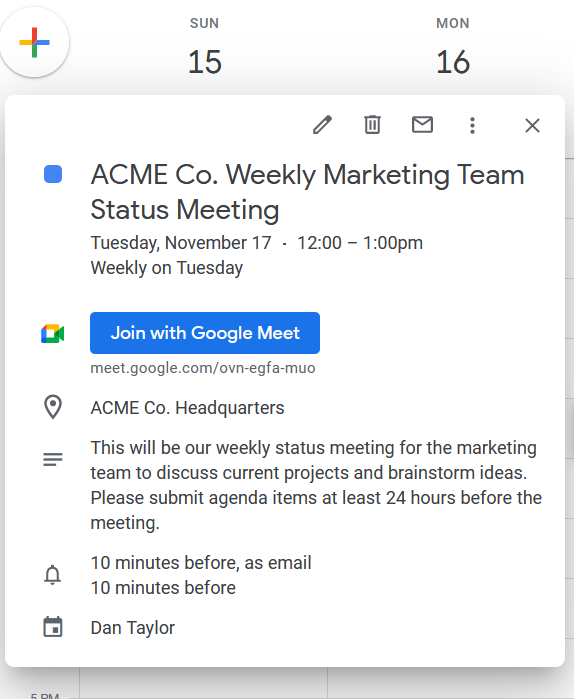
After you have saved the meeting, an entry will appear on your calendar. When the appointed time comes, click on the calendar entry and a window will pop up with a big blue "Join with Google Meet" button. Click on that button. Note: The meeting invite will also include a Google Meet phone number and pin you can call if an attendee prefers to dial into the meeting rather than join on their computer.
A screenshot from Google Meet.

A big blue “Join with Google Meet” makes joining a scheduled meeting easy. Image source: Author

6. Click "Join Now" or "Present"

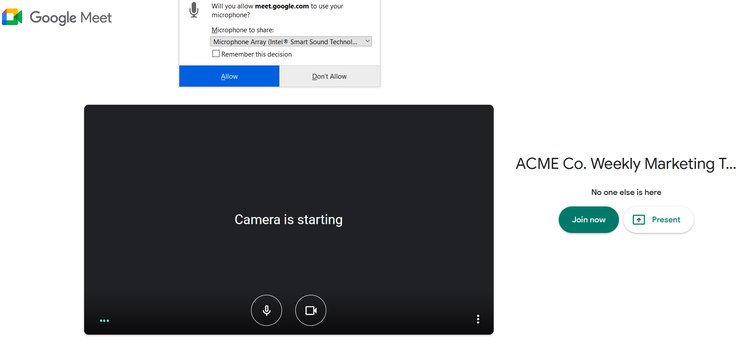
You will be taken to a waiting room of sorts where you can choose whether to allow your camera and your microphone. Once you've made that selection, click the "Join Now" button to the right to join the meeting. Or, click "Present" if you are the presenter and need to share your screen.
A screenshot from Google Meet.

Adjust your settings before joining the meeting. Image source: Author

7. Navigate meeting options

Now you're in the meeting. While in the meeting, you can turn your camera and microphone on and off, as well as present if the host gives you permission to do so. There is also a chat function, which is useful if you are having difficulties or just want to make a comment without interrupting the presenter. To leave the meeting, click the red phone icon at the bottom.

Thursday, June 20, 2013

How to use Video Call on Sumsung galaxy S4

How to use Video Call on Samsung galaxy S4

Video call Samsung galaxy S4 with Skype

We will show how to use Samsung galaxy S4 to make free video call with Skpye Application on Android using feature video call.this application add-on andriod phone only.in the future must be have on another Smartphone.

Skype is top 10 video call application,it's easy to use many feature single video call or group call,and connect with wi-fi or 3G/4G bandwiths.you can make video calling on andriod device

Saturday, November 3, 2012

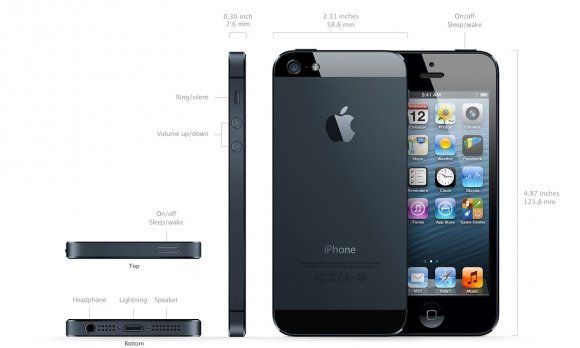
IPhone 5 video call Testing around the world

IPhone 5 Testing in many place in The World.


picture : pix-geeks.com

New IPhone 5 on sale in many country with IOS 6 OS. IPhone 5 and IPad can connect with Facetime video call,This Application had installed in Apple devices.They cann't video calling to Andriod Platform.IPhone 5

Monday, June 11, 2012

Samsung galaxy s3 video call


Samsung galaxy s3 video call

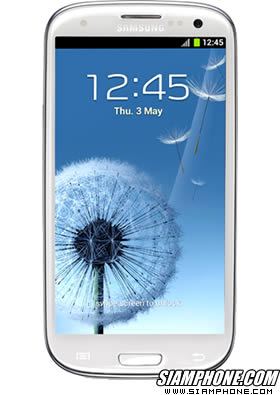
Samsung Galaxy S3 debut at the Samsung Mobile Unpacked 2012 held on May 3, 2555 in London, England is the flag ship of the new Samsung (flagship) to replace two old Samsung Galaxy S 2. If this attack is sold in many countries around the world.Samsung Galaxy S3 comes with Quad-core ARM Cortex-A9 processor speed of 1.4GHz is a desktop version of the Samsung now. It is not a top model in the smartphone market. (Smart Phone The Android version of Windows is a Quad-core CPU to run it).

Galaxy S III is not the Galaxy S II by conventional plastic is made from polycarbonate. (Polycarbonate) features a lightweight. And durable as well. This is the same material used in the HTC One X.
However, there are different ways to match the material in the Galaxy S III is a polycarbonate. A polycarbonate coating Hyperglaze (a ceramic coating) full name is the Lord Hyperglaze Polycarbonate shell with Hyperglaze Coating coating makes Galaxy S III is more durable than ever.

This means that the Samsung Galaxy S3 may be stronger than the HTC One X, it is not over whether or not I would have time to test it out.


Monday, November 7, 2011

T-mobile release Bobsled Video call for andriod and iOS

T-mobile release Bobsled Video call for andriod and iOS


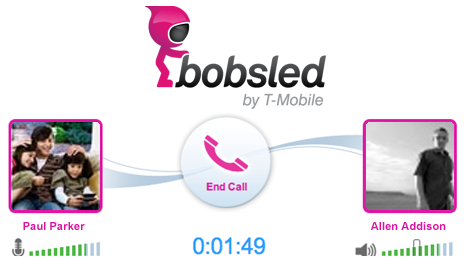
T - Mobile has launched a Facebook application that allows voice chat to a friend. It's called Bobsled (or more correctly, Bobsled by T - Mobile, it will remind you of the steps in the process every time) and it is at 88% (according to the study of them) for Facebook as. want to voice chat with the site. As one of the other 12%, I can not say with certainty that this check is what people think, but at least it looks integrated

Monday, October 17, 2011

Programs of the future FRING Video Calling for Android.


Programs of the future FRING Video Calling for Android.


Following the play the Video Calling on the phone, it is not difficult anymore. All you need is a camera next Android phone. Communications, it is easy Video Calling. From the video as a test FRING using Wi-Fi and 3G, which the video will be seen that the use of Internet, wireless and 3G network but the difference is not the FRING as Video Calling, similar to Skype, you can use. calls it. Recently the manufacturer has released a plug-in for Skype, then it will make your Android phone calls with PC Video Calling. FRING program can be found.

http://www.fring.com/android/


How to Start Google Hangout

How to Start Google Hangout


Thursday, August 18, 2011

Google Talk video with Android 2.3.4 Gingerbread


Google Talk video with Android 2.3.4 Gingerbread


Google Talk Video Chatting For Android ( Video Chat Invitation ) Now available on Samsung galaxy s2.
With The New Android Version Gingerbread ,that upgrade to Android 2.3.4 that'll bring video calling to Gtalk ( video call ability )
AndroidHD tested for you the quality between a computer and a Nexus s.
Inside the test were performed in WIFI and outdoor the test was in 3G.

With Google Talk, you can now video or voice chat with your friends, family and colleagues right from your Android phone, whether they're on their compatible Android tablet or phone, or using Gmail with Google Talk on their computer. You can make calls over a 3G or 4G data network (if your carrier supports it) to stay connected while you're on the go, or over Wi-Fi.

Google Talk with video and voice chat will gradually roll out to Nexus S devices in the next few weeks as part of the Android 2.3.4 over-the-air update and will be launching on other Android 2.3+ devices in the future.

Avec Google Talk, vous pouvez maintenant la vidéo ou le chat vocal avec vos amis, famille et collègues à partir de votre téléphone Android ( visioconférence) , qu'ils soient sur ​​leur tablette Android compatible ou par téléphone, ou d'utiliser Gmail avec Google Talk sur leur ordinateur. Vous pouvez faire des appels sur un réseau 3G ou 4G de données (si votre opérateur prend en charge) pour rester connecté pendant que vous êtes en déplacement ou en Wi-Fi.

Google Talk avec la vidéo et le chat vocal sera progressivement déployé dans d'appareils Nexus S dans les prochaines semaines dans le cadre de la mise à jour 2.3.4 Android sur les ondes et sera lancé sur d'autres appareils Android 2.3 + à l'avenir. ( samsung galaxy sII)

Et un merci particulier pour Hypnozprod pour le son
si vous souhaitez le contacter :
Mail : hypnozprod@gmail.com
Facebook : Florent Hypnoz
Web Site : http://www.hypnozprod.com/


Thursday, August 11, 2011

How to make video via Facebook Video Call

How to make video via Facebook Video Call


Earlier today, Facebook teamed up with Skype to launch video calling right within Facebook.
Facebook is trying to beat back a challenge from Google, which began beta-testing its own social video chat feature, Google+ Hangouts, last week.
The Facebook-Skype calls are one to one only, while Hangouts supports up to 10 people.
But Facebook has two big advantages. First -- and most important -- a lot of your friends are already on the service. Facebook has 750 million users. Google+ isn't even open to the public yet.
Second, Facebook claims the feature is so easy to use, even the least technical people on Facebook should be able to figure it out fast.
We checked it out for ourselves, and they're not lying. Here's how you do it.

Monday, June 6, 2011

How to Make Free Calls on iPad

How to Make Free Calls on iPad

iPad’s greatest attribute is it is much like iPhone, only bigger. Well, one iPhone feature that is seriously lacking with iPad is the ability to make phone calls.
The Whistle Phone app fixes this problem. Users are given not only the ability to make calls, but the ability to receive them, too.

Whistle Phone
To start, download the Whistle Phone app from the app store on your iPad. When the app opens, select Create a Whistle Account.

create whistle account

You are asked to provide registration information, which includes your name and email address. Click Continue when finished.
IMG_0006
Next, provide your gender, birth date and zip code. Click Continue.
IMG_0007
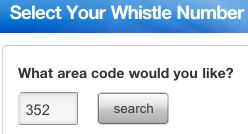
Choose an area code for your new Whistle Phone number and click Search. Not all area codes are available. If your chosen area code is not available, Whistle Phone will assign a temporary number to you until they do have a number available in your area code.


IMG_0008
Once you are assigned a number, you must verify your email address. Do this, then return to the app.
IMG_0009
To make calls, simply dial the number you wish to call from inside the app. You will hear a short advertisement, then the phone will ring.
IMG_0010
Using iPad’s built-in microphone and speakers works well with this app. We were able to make crystal-clear phone calls with no problem at all. If the advertisements are bothersome, you can pay to disable them.
When a phone call is received, your iPad starts making a ringing noise and the number calling is displaying on the screen. Like on iPhone, slide the bar to answer the call.

call

Overall, we were impressed by how easy it is to make phone calls with this app. We especially like having our own phone number—it is like turning our iPad into another cellular phone, since the service works on both WiFi and 3G. Whistle Phone is also available on iPhone.


Monday, May 16, 2011

Microsoft's takeover Skype

Microsoft's  takeover Skype

Industry questions whether software giant is overpaying for Internet telephony provider.
 

Microsoft plans to take over Internet telephony specialist Skype in a multi-billion-dollar deal that could be confirmed later today, it emerged on Tuesday.

The software giant will pay a staggering US$7 billion-$8 billion for Skype, according to the Wall Street Journal which broke the story citing “people familiar with the matter”. Microsoft and Skype have yet to comment on the report.
Despite the initial shock from the industry – Skype was widely tipped as a takeover target but Microsoft had previously not been named as a likely buyer – the logic of the deal quickly became evident: Microsoft will be able to integrate Skype's Internet calling service into a number of its product lines. However, eyebrows were raised over the price of the deal, which does not seem to reflect Skype's recent struggles to monetise its business.
Skype posted a net loss of $7 million in 2010 on revenues of $860 million, although admittedly those numbers were an improvement on 2009, when it reported a $418 million loss and revenues of $719 million. The company has a strong subscriber base: its registered users number 663 million. However, the problem is that many of those customers use Skype's free services. Its paying customers are growing, but at the end of last year average monthly paying users stood at just 8.8 million.

For Microsoft the synergies are clear. Integrating Skype into its gaming systems, Xbox 360 and Kinect, will give it an extra dimension, while bringing Skype and Microsoft's Office software together could facilitate new collaboration tools. The situation in the mobile space is less clear. Doubtless Microsoft could incorporate Skype into its Windows Phone operating system, but there are doubts over whether mobile service provider customers would be in favour of that.

Is that extra dimension really worth as much as $8.5 billion – the deal also includes the assumption of $686 million in debt – to Microsoft?

If the deal goes ahead as outlined it will certainly be good news to one company.
Skype's former parent and existing 30% shareholder eBay stands to make money from the transaction, which is something of a turnaround given that its

Thursday, May 12, 2011

Test - iPAD 2 FACETIME

Test - iPAD 2 FACETIME

T-Mobile myTouch 4G "Piggyback"

T-Mobile myTouch 4G "Piggyback"

Wednesday, April 20, 2011

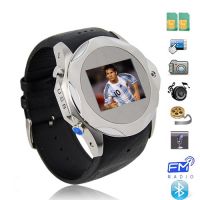
Steel Dual Sims Bluetooth Video Call Quadband Watch Phone 4GB


Specification

Dual SIM Cards Stanbdy
Support GPRS
Touch Screen Sound recorder
Caller ring tone
Bluetooth MP3 / MP4 player
Calendar
Memo
Alarm clock
World time
Calculator

Hot Spots:

Model NO.: S730
Sim Cards: Dual sim dual standby
Touch Screen: 1.4 inch OLED display , 128*96 pixel, 256K colors
Frequency: GSM850/900/1800/1900
Camera: 2.0Mp Supports picture taking and video record
Bluetooth : Supports V2.0 bluetooth


Video Player: Supports 3GP , Mp4 and AVI format video display
Audio Player: Supports 3GP , WAV , AMR and MIDI format music play and WAV voice recording
FM radio: Supports FM radio broadcast
Data transfer: USB, Bluetooth , GPRS
Others: Calendar , To Do List , Alarm Clock, E-book reader
Internet : WAP Browse, Gprs
Multi languages: English, French, Spanish, Portuguese, Italian, German,
Dutch, Czech, Greek, Russian, Turkish


Digital Watch: Support 5 analog clocks and digital clock standby display , 5 alarm clocks , calendar
Battery: 600mAh , 150-180 minutes calling time, 150 hours stardby time
Storage: Build in 4GB memory (No expansion memory slot)
Dimension: 48*48*17
Color : Silver body with black leather wristband

Tuesday, April 19, 2011

Easy video call on Facebook

Easy video call on Facebook


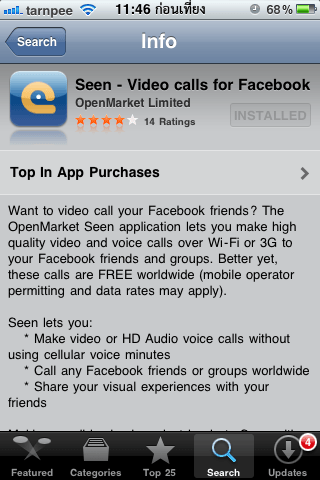
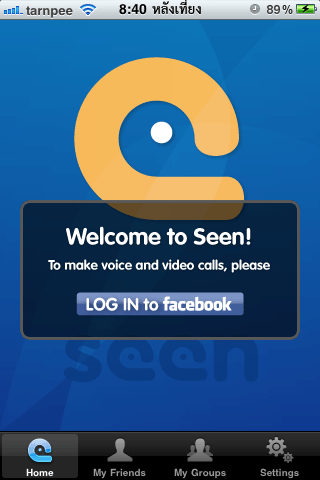
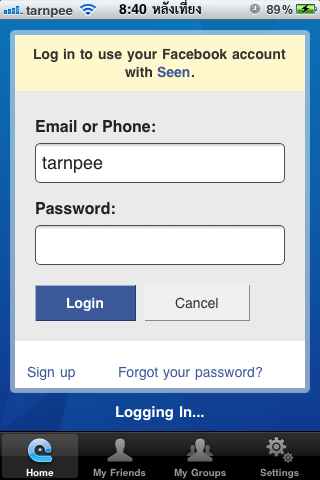
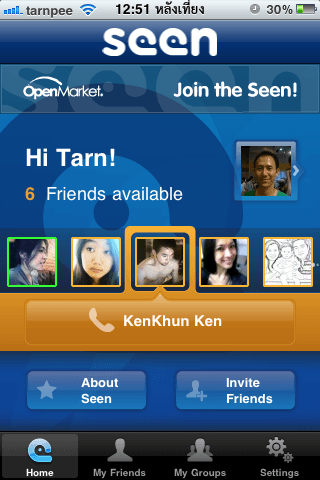
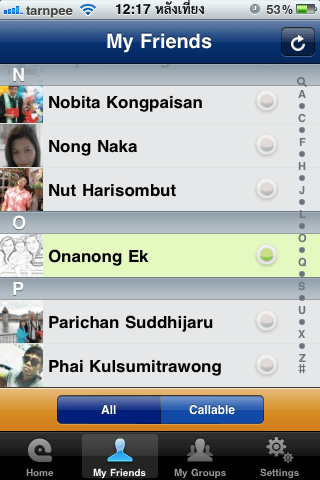
Seen is the application available for families who use facebook and i have installed only seen together.
As far as trial over wifi and 3G voice and video so well can not believe that's free and it has a good model.
The use of sound through the edge ais is the lack of any knowledge, but not good enough.

- For those who have friends on facebook and do not want to distribute telephone.
- Log in with a facebook account.
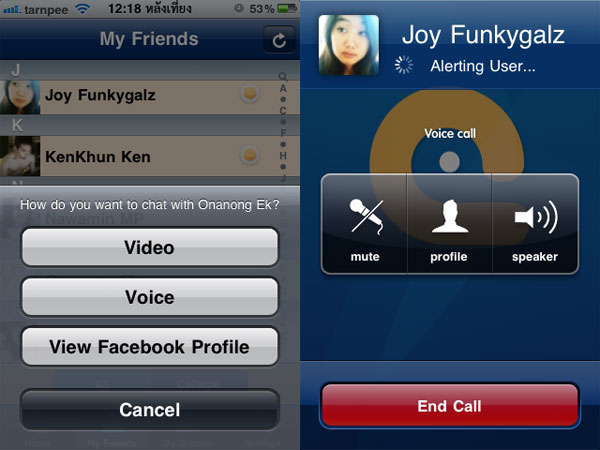
- To call each other by voice. Like a telephone.
- Talk face to face the eye called the video call or facetime.
- Sound and picture quality. Depending on the speed of the internet wifi or 3G.
- The edge is too slow to talk, especially to know Ernืng edge label true.
- If you do not log out when a friend calls up a pop up notice to accept or not.

- Only iPhone 3Gs, iPhone4, iPod Touch4, iPad 2 in addition to all this all right.
- Need iOs 4.1 or above.
- All seen that you Download and use free of charge with no conditions.


Step by Step to install


Monday, April 18, 2011

Airtel 3g New Video Calling Ad

Airtel 3g New Video Calling Ad

Sunday, April 17, 2011

How to make video call via Nokia N8

How to make video call via Nokia N8

Nokia in today's world is defined as a best in mobile industry. Because of its new techniques, innovations and developments it has captured millions of hearts for it. Not only it is popular in India but around the world it has gained the topmost position in the mobile industry.The new invention done by the research team of nokia corporation is the latest Nokia n8.There are so many updations that has been done in nokia n8 but the best feature of this phone that makes it the best nokia n8is 12 megapixel camera with carl-zeiss lens which claims to capture high definition images and 720p seamless videos with zenonflash.


For those people who love clicking photos will love this phone because of this feature.This version is the powerpack of latest features and magnificent looks that will tempt people to buy nokia n8.Just like its tagline connecting people it has connected a relationship with people.Nokia n8 simfreephone solves the purpose of those travellers who on business purpose travel to abroad and they have now the independence to choose that particular country's sim card and have an unlimited time of talking to their close ones or their clients as this handset is not to tied to any kind of network and can be used with almost all simcards.Nokia n8 deals offersa plenty of benefits to the users as they offer cash back benefits,free minutes of talk time,free text messages ,free connections or free line rental that has reduces line rental too.Nokia n8deals provide many surprising applications like Dolby Digital Plus via HDMI,digitalcompass,video/phone editor,FlashLite v4.0,Anodized aluminium casing,document viewer(word excel,powerpoint,pdf),T9,TV-out(720p video)via HDMI and composite and voice command/dial.


Cheap nokia n8 contract offersare provided by various network providers like Vodafone,orange,02,Three,T-mobile and Virgin.Nokia n8 best deals provide you lots of free rewards including Nintendo games,psp,xbox,laptops,lcdtv,automatic cash back.freedownloading,unlimited text messages,reduced call rates and further more.Its a must buy handset as you get nokia n8 bestdeals offered. One can also attain a freedom from most expensive plans offered on handsets and can be tension free by utilizing and availing the advantages on nokia n8 deals uk offered as these deals provide a reasonable and affordable tariff plans suiting to your needs and also provides the mobile phone at least expensive prices suiting to your budgets.The dealers of nokia provide you so many offers within which you have to choose which are the best offers on nokia n8available with your preferred minutes, contract length and even free gifts. There is also a trend which nokia n8 is following that is of nokia n8 12 month line rentalwhich provides a plan matching your requirements like of free talk time or messaging and many more.So all we conclude is that nokia is a must buy handset.

Example Video


IP Telephony - Ways To Make Calls For Free

IP Telephony - Ways To Make Calls For Free

The internet is a very useful tool. It can be used for many things, and one of those things is the telephone. The telephone is one of our basic needs and that is to communicate. Technology has made our world easier and such has become integrated in every part of our lives. The future is now walking towards the IP telephony.


The information or the voice, is sent over the data network. It is reduced down into packets that are sent through the lines to a server and thus the internet. The web serves many functions, now it can serve something that is more basic, the phone.

The IP telephony is cheap and can be purchased by anyone. Another advantage, is that the internet service can be used for more than just one function. This allows for a better budget, something that is important in today's economy.
Another advantage of the IP telephony is that it can have multiple services. Services such as faxing, and other items can be added onto the phone. The service is also clear and reliable.
VoIP can also be used on the cell hone as well. This allows for VoIP to be used on other devices. The advantage of everyone being connected is that it will help to make society better. A basic function can be provided because it is now affordable for everyone. The advantage for the government is that their citizens are better connected and the flow of information is quicker.

The need for a telephone is enormous considering the complex nature of our society. It has become a basic need and such, should be in every home. With the use of the internet, this can be possible. Thanks to the internet and VoIP services


Friday, April 15, 2011

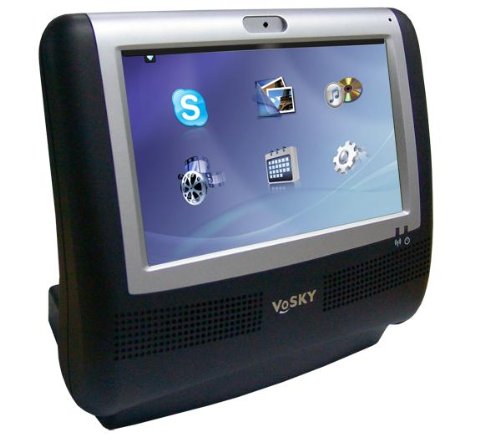
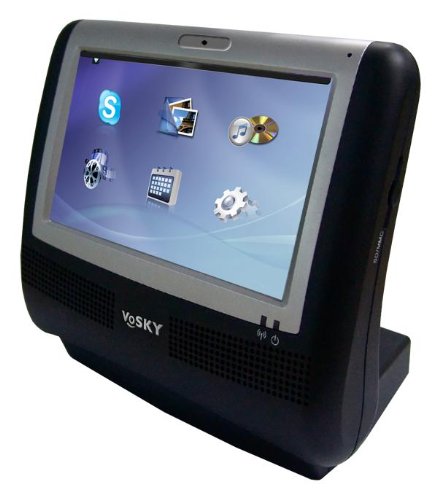
VoSKY Touch Videophone for Skype Preview

VoSKY Touch Videophone for Skype Preview


Why the VoSKY Video Touch Phone for Skype?
* Powerful and Seamless - enjoy smooth and clear fullscreen video calls
* Stand-Alone Device - No need to download software, configure webcam, microphone, or speakers, or deal with competing programs that may interfere with video/audio quality
* Always On - VoSKY Video Touch Phone is always ready to make or take a call
* User-Centric Design - intuitive touchscreen controls makes it easy for anyone to use
* Connect to Online Services - supports custom media content, including FrameChannel and SHOUTcast™ Radio
* Standards Compatible - supports full spectrum of audio, video, and photo media file types
* Flexible and Functional - deploys easily in either home or office networks via Ethernet or Wi-Fi

What's in the box?

* VoSKY Video Touch Phone for Skype
* Power adapter
* Quick start guide
* RJ-45 CAT5e Ethernet cable

VoSKY Multimedia Touch VideoPhone (MTV) Review 1


VoSKY Multimedia Touch VideoPhone (MTV) Review 2


VoSKY Multimedia Touch VideoPhone Review 3


Wednesday, April 13, 2011

How to Record Skype Video Conference

Skype is one of the most popular free ways to chat, talk and video conference around the world. The video conferencing function is becoming more and more common as access to webcams and high-speed Internet has improved. But how to record a Skype video conference for later reference? There are two ways to do it, and both involve installing a free Skype plugin. In fact, it is surprisingly easy.

Instructions

1. Launch Skype and log in. You cannot install the required video conference recording plugin while offline. Set your status to "Invisible" if you wish not to be disturbed while installing the plugin.

 2. Click "Tools," "Extras," and "Get Extras" from the top menu bar in Skype. This opens the Extras Manager

 3. Type "record video" in the search box in the Extras Manager. Two plugins will appear: VodBurner Video Call Recorder and Supertintin Recorder for Skype. We will use the latter plugin.

4. Click the green button next to the Supertintin plugin to install it on your computer's hard drive.

5. Follow the installation wizard, choosing all the defaults for Supertintin. Plugin installation is now complete, and no restart is necessary. From now on, every time you start Skype, Supertintin will also start up in a separate window.

6. Click the red "Record" button whenever you are on a Skype video conference to record it to your hard drive.


LinkWithin

Related Posts Plugin for WordPress, Blogger...